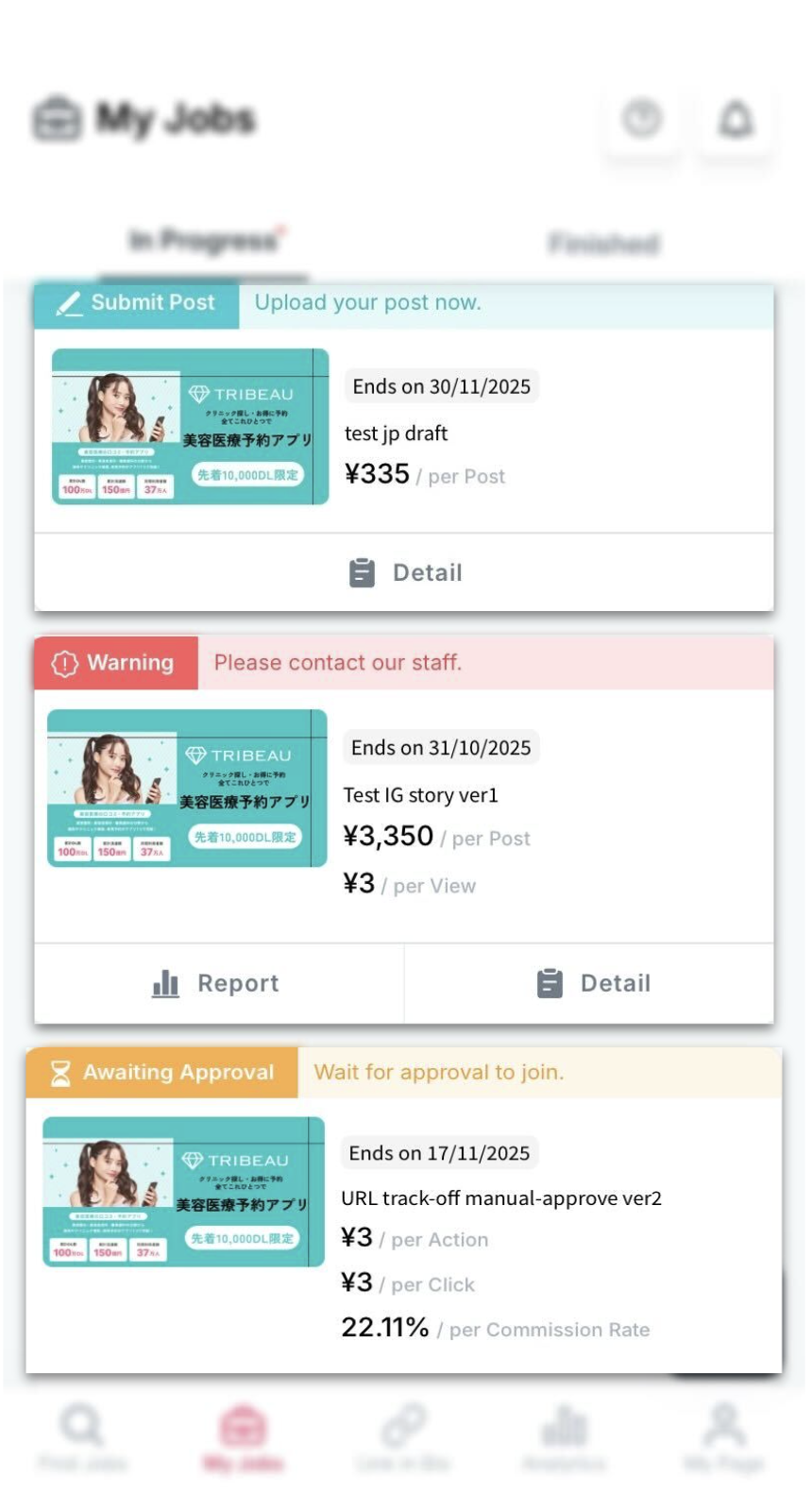
| Status | Sorting | Description |
| Submit Draft | 1 | You’ve successfully joined the campaign and need to submit your draft content for approval. |
| Modify Draft | 2 | Your draft was reviewed, and the brand requested revisions. Please edit and resubmit your draft. |
| Submit Post | 3 | Your draft has been approved — it’s time to upload your final post on the assigned social platform. |
| Warning | 4 | There’s an issue with your post (e.g., deleted post, API/social accounts disconnection). Please check and take corrective action. |
| Awaiting Approval | 5 | You’ve applied for the campaign but haven’t been approved yet. Please wait for confirmation. |
| Draft Reviewing | 6 | Your draft has been submitted and is currently under review by the brand or campaign manager. |
| Post Submitted | 7 | You’ve submitted your post, and it’s under review or awaiting tracking confirmation. |
| Running | 8 | Your post is live and currently being tracked — conversions, clicks, and engagement data are being collected. |

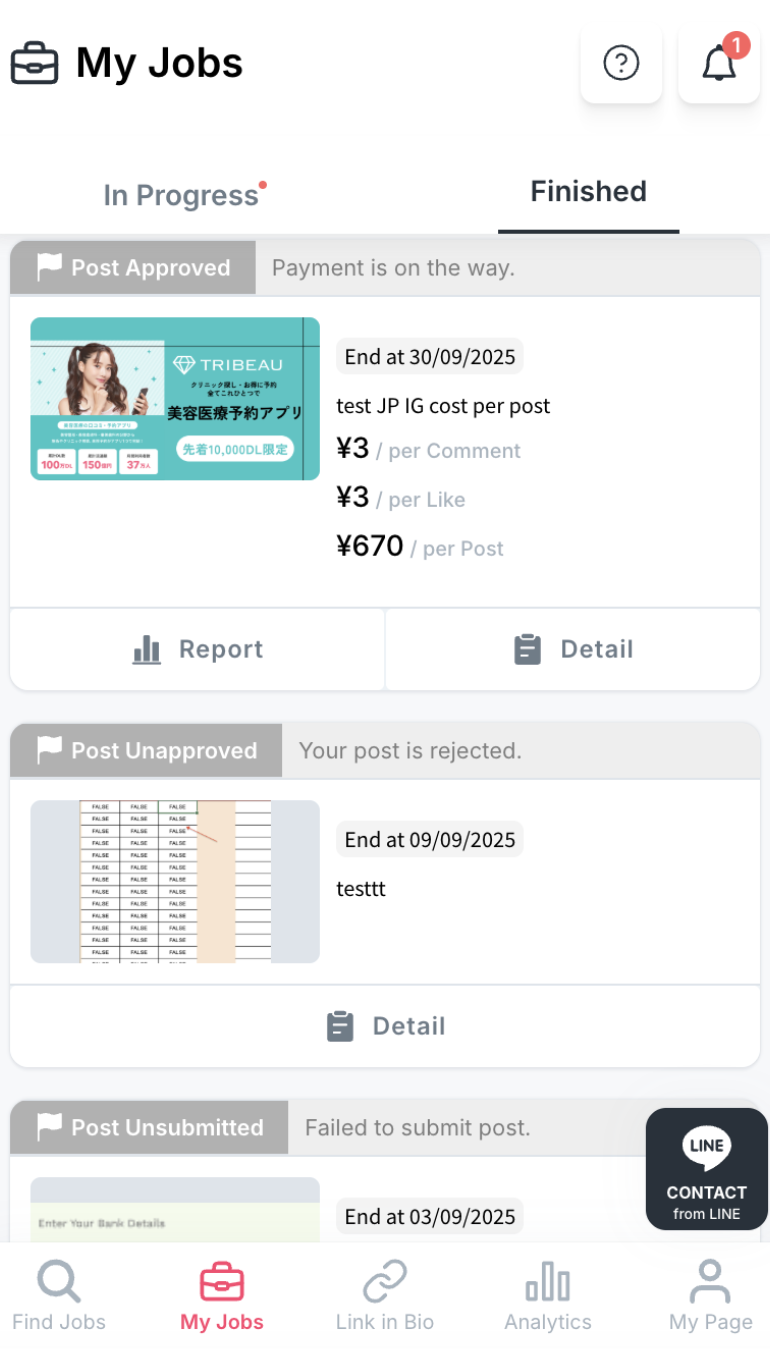
| Status | Sorting | Description |
|---|---|---|
| Status | Sorting | Description |
| Post Submitted | 1 | The campaign has ended, and your post has been submitted for review by the brand or campaign manager. |
| Post Approved | 2 | Your post has been reviewed and officially approved — great job! |
| Paid | 3 | The campaign is complete, and your payment has been successfully processed. |
| Over Budget | 4 | The campaign exceeded its budget before you submitted your post. Unfortunately, your post won’t be counted for payment this round. |
| Post Unapproved | 5 | Your post was reviewed but marked as ineffective or did not meet the campaign requirements. |
| Post Unsubmitted | 6 | The campaign has ended, but you didn’t submit your post — or it failed to upload due to errors (e.g., deletion, missing hashtags, or connection issues). |
| Rejected | 7 | Your campaign application was not approved, and you were not selected to participate. |
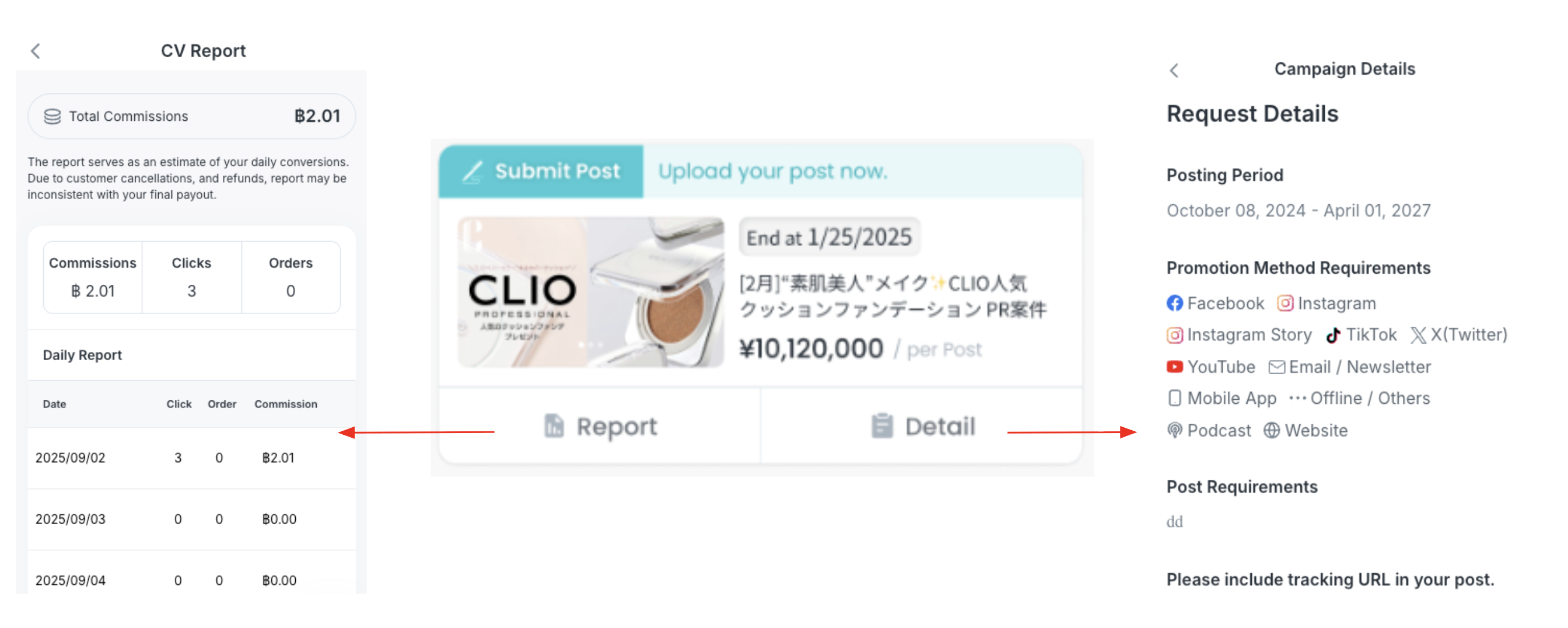
| Section | Description |
|---|---|
| Report | Displays performance data such as views, likes, comments, and engagement rate, etc. |
| Detail | Shows campaign brief, requirements, duration, and payment information. |